Micro - A modern and intuitive terminal-based text editor
1. Introduction
In a terminal environment, having a reliable and user-friendly text editor is essential for efficient work. This is where Micro shines. Micro is an open-source text editor designed for command-line users seeking a modern and intuitive alternative to classic editors like Vim or Emacs.
2. What is Micro?
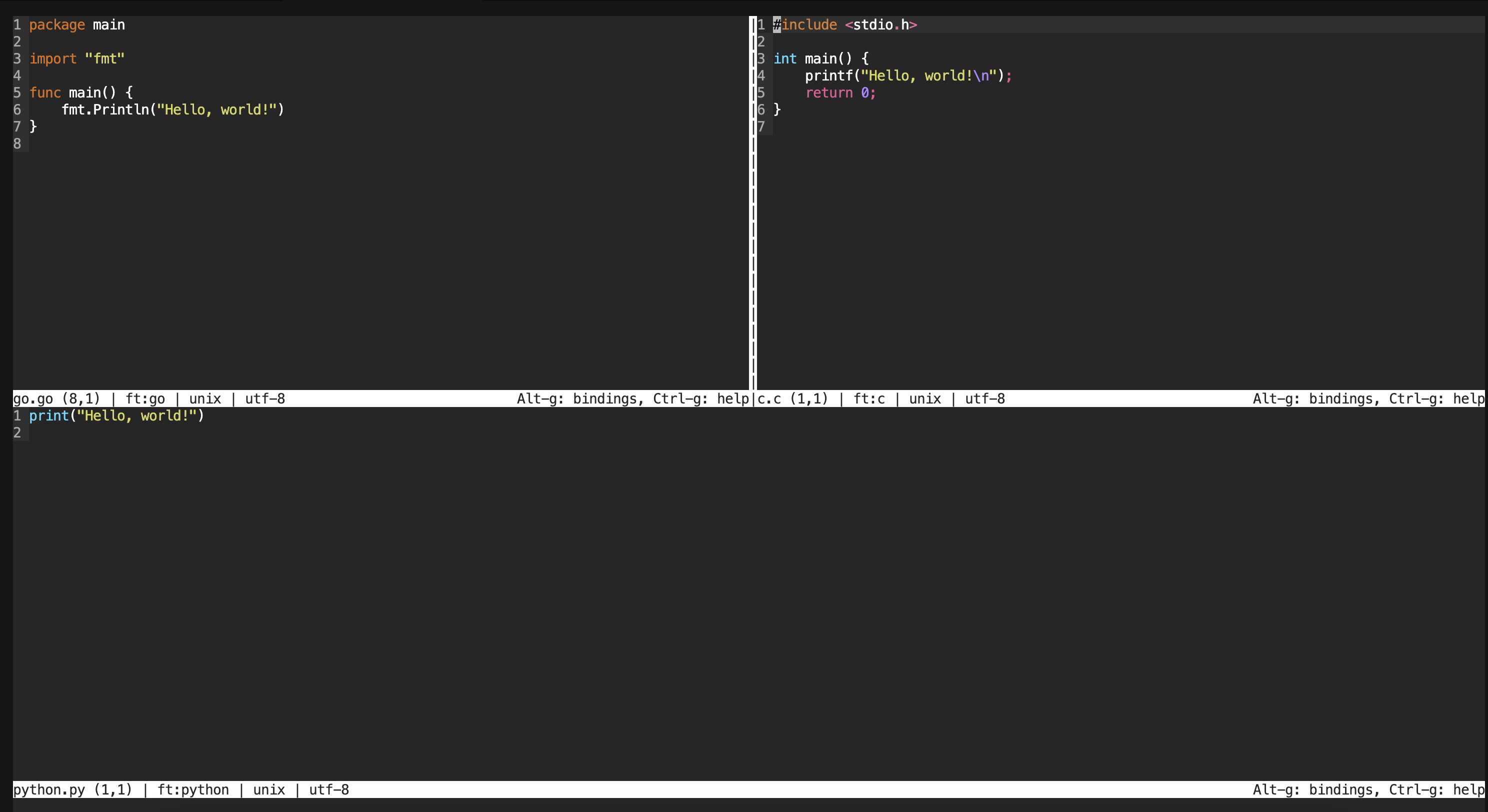
Micro is a terminal-based text editor that combines simplicity with powerful features. It offers a clear and user-friendly interface while retaining flexibility for advanced users. Unlike some command-line editors, Micro is designed to be immediately accessible without requiring a steep learning curve.
3. Why Use Micro?
- Easy to Get Started
Micro is intuitive, with straightforward and consistent keyboard shortcuts. New users can quickly become comfortable without learning numerous commands.
- Customizable
Micro supports customization through simple configuration files. You can adjust colors, keyboard shortcuts, and settings to fit your preferences.
- Extendable with Plugins
Despite its lightweight nature, Micro supports plugins that can extend its capabilities. Whether you need syntax highlighting for different programming languages or project management features, Micro can be tailored to your needs.
- Cross-Platform
Micro works on different platforms including Linux, macOS, and Windows. This makes it ideal for users who want a consistent experience across different operating systems.
- Performant
Despite its simplicity, Micro is fast and responsive even with large files, making it perfect for quick and efficient text editing tasks.
4. How to Install Micro?
4.1. Quick-Install Script
Install Micro on Linux or Windows using the following command:
1
curl https://getmic.ro | bash
4.2. Manually Install
However, if you prefer to install micro manually, follow these steps according to your operating system.
4.2.1 Linux
On Linux you can install micro through snap:
1
snap install micro --classic
Micro can also be accessed via various package managers on Linux, including dnf, AUR, Nix, and package managers for other operating systems. However, please note that these packages may not always be the most current versions.
- Fedora
1
dnf install micro
- Ubuntu and Debian
1
apt install micro
- Arch Linux
1
pacman -S micro
- Gentoo
1
emerge app-editors/micro
- SUSE
1
zypper install micro-editor
- Solus
1
eopkg install micro
- Pacstall
1
pacstall -I micro
4.2.2. Mac
You can install Micro using Homebrew on Mac:
1
brew install micro
4.2.3. Windows
4.2.3.1. Using Scoop
You can install Micro using Scoop:
1
scoop install micro
4.2.3.2. Using Chocolatey
You can install Micro using Chocolatey:
1
choco install micro
5. Usage
Micro offers versatile features for efficient text editing directly from the terminal.
5.1. Creating and Editing Files
To open or create a file:
1
micro filename.txt
5.2. Basic Text Editing
Use standard keyboard shortcuts for text editing:
Ctrl+Sto saveCtrl+Qto quitCtrl+Cto copyCtrl+Vto pasteCtrl+Xto cutCtrl+Zto undoCtrl+Yto redo
5.3. Command Mode
Micro features a command mode for executing various actions and commands. Press Ctrl+E to enter command mode, where you can perform tasks such as:
- To change your colorscheme:
1
set colorscheme twilight
- To open a horizontal split:
1
hsplit {filename}
- To open a vertical split:
1
vsplit {filename}
5.4. Plugins
Micro supports plugins that extend its functionality. You can install plugins using the built-in plugin manager:
- Press
Ctrl+Eto enter command mode and execute the following command:
1
plugin install {plugin_name}
5.5. Customization
Micro is highly customizable through its configuration file (~/.config/micro/settings.json). You can customize key bindings, color schemes, syntax highlighting, and other options to tailor Micro to your preferences.
6. Start Using Micro Today
If you’re looking for a modern and powerful command-line text editor, look no further than Micro. Its simplicity, versatility, and performance make it an ideal choice for developers, system administrators, and anyone who spends a lot of time in a terminal.
Try Micro today and discover how a minimalist text editor can make your terminal work more efficient than ever!
7. References
Below are the links used to write the article: